
Check-in, check-out and transfers
Know who has every asset, and since when
Hand an asset to a person, take it back, move it between places, and have every step on record. Bulk check-in turns a pile of returned laptops into one scan session.
The problem
Equipment goes out on a verbal promise. Months later nobody is sure who has the projector, the laptop came back but the record did not change, and a transfer between branches is a WhatsApp message and a hope.
How it works in VexCloud AMS
01
Check out and assign
Check an asset out to a person, a location or a department, with an expected return date and notes. If the asset is already in use, you can assign it instead, which records who holds it without changing its status.
An asset has at most one open assignment, so there is never a question of who has it. Checking one out to a location moves it there as well.
02
Custody the person confirms
When equipment is handed to a person, VexCloud AMS can ask them to confirm it. A single hand-over of several assets is confirmed once, and what they confirm is exactly what was shown, stored with a fingerprint of that content.
- In the app, by the custodian signing in.
- On your device, with the custodian's typed name.
- From an emailed link, valid for 14 days.
Choose whether it is always asked, optional at each check-out, or off. The wording is yours.
03
Bulk check-in by scanning
Scan a pile of returns with a handheld scanner or the phone camera, or paste a list. Before anything changes you see a preview that sorts every code, and you run only what is ready. Each asset is its own transaction, so one bad code never undoes the rest.
The same screen does bulk check-out, and the results export to CSV.
04
Transfers between places
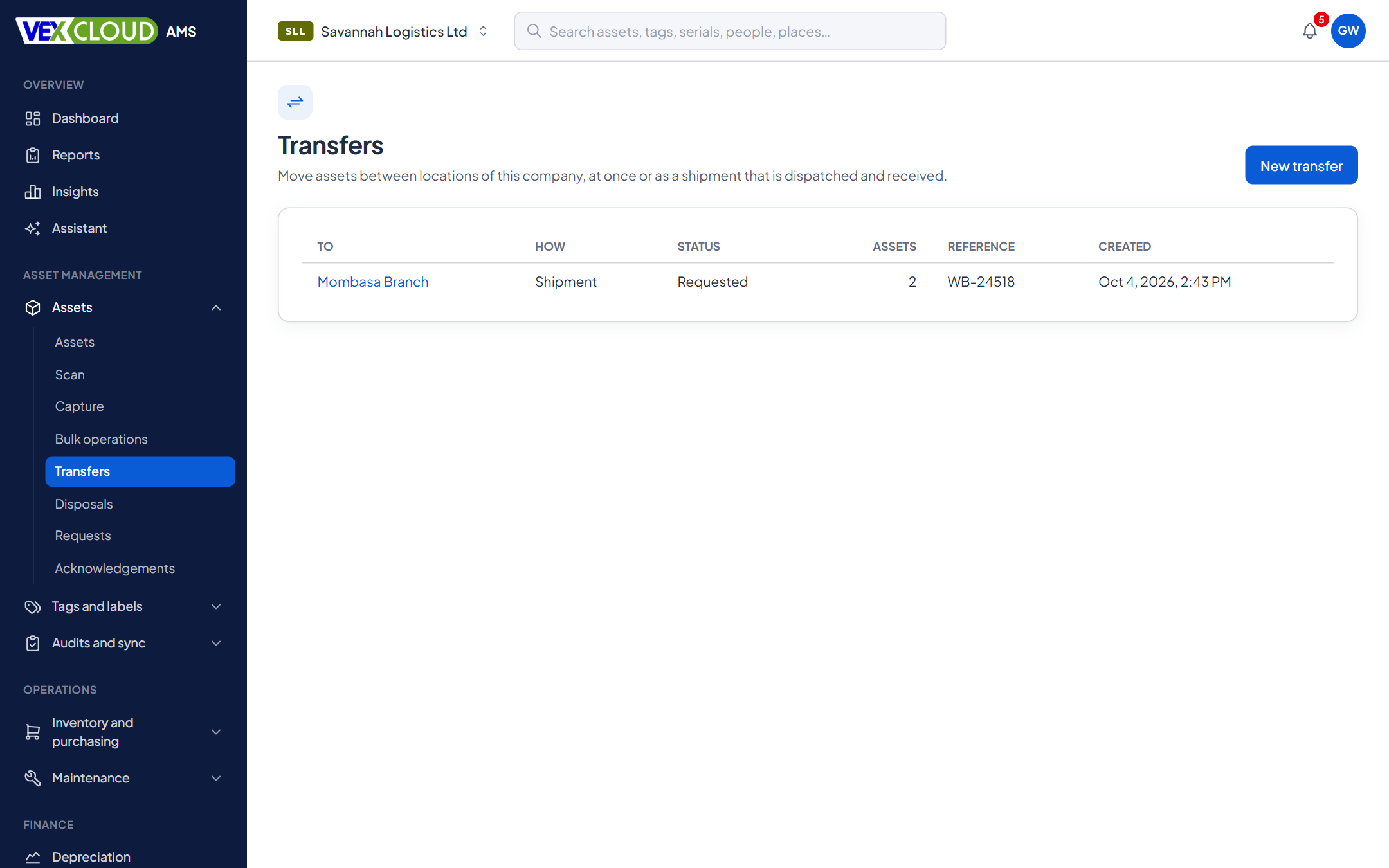
Move now relocates assets at once, for a change of room or floor. Shipment is requested, dispatched and received: assets travel as in transit, and on receipt they take their destination location and the status they had before. Assets that did not arrive are marked missing.
Custody is kept while an asset moves, and you can add a waybill or other reference.
05
Disposal with approval
Request a disposal with a method (sale, donation, scrap, trade-in or write-off), a reason and supporting documents. Someone other than the requester approves it, then it is completed with the date and proceeds. A disposed asset can no longer be edited, checked out or moved, and a reversal needs a reason.
The financial side, final depreciation and gain or loss, is described under depreciation.
Preview before you run
A bulk check-in sorts every scan into a category first. You run only the ready ones, and skipped codes stay listed so you can chase them.
| Outcome | Assets | What it means |
|---|---|---|
| Ready | 19 | Will be checked in |
| Duplicate scan | 2 | Scanned twice: counted once |
| Already in | 1 | Already checked in: skipped |
| Other company | 1 | Belongs to another company: skipped |
| Not found | 1 | No asset has this code |
Details
- Targets
- A person, a location or a department
- Open assignments
- One per asset
- Return date
- Expected return date and notes; list of overdue returns
- Custodian
- Notified in the app and by email
- Acknowledgement
- In the app, on the operator device, or by emailed link; always, optional or off
- Bulk
- Check-in and check-out by scan or pasted list, with preview and CSV results
- Transfers
- Move now, or request, dispatch and receive
- Disposal methods
- Sale, donation, scrap, trade-in, write-off
- History
- Every event recorded: who, what, when
- Android
- Check in or out from an asset, bulk check-in, transfers
Related features
- Fixed asset registerNumbers, serials, locations, custodians, values, photos and documents, with history.
- Android app, offlineScan, capture and count audits where there is no signal. Syncs when you reconnect.
- Automation and alertsRules that watch your assets and tell the right person.
Universities and schools: lab equipment and IT checked out to staff, with a record of who has what.
Equipment that gets handed around needs a tag that stays on. See tamper-proof asset tags.
FAQ
Questions on check-in, check-out and transfers
Can I assign an asset to someone who has no login?
Yes. Custodians are people records, separate from user logins. A staff member can hold laptops and tools without ever signing in, and can confirm receipt from an emailed link.
Can I check an asset out to a room or a department?
Yes, when your company allows it in its asset settings. Checking out to a location also moves the asset there.
What happens in a bulk check-in if a code is wrong?
Nothing is changed until you have seen the preview. Codes that were not found, belong to another company, were scanned twice or are already checked in are listed and skipped, and only the ready ones run.
Can an asset be in two transfers at once?
No. An asset can be in at most one open transfer and one disposal in progress, so two people cannot send the same laptop to two places.
Does anyone get told when an asset is assigned?
Yes. The custodian is notified in the app and by email, and automation rules can notify others when an asset is returned or transferred.
See your own assets in VexCloud AMS.
Book a 30-minute demo.